Dashboard
The dashboard is the app's home screen (route /). It answers two questions:
what is running right now, and what is it costing? Everything else on the page
is in service of starting or stopping a server.
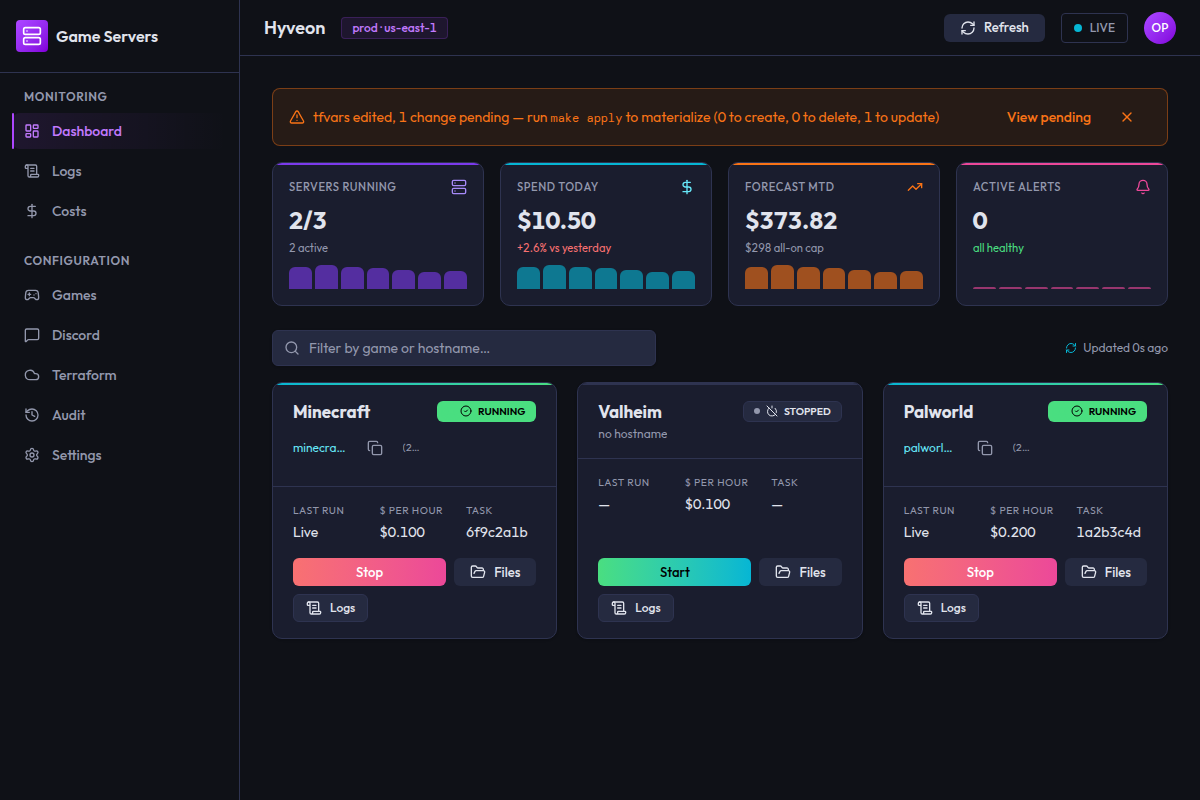
The KPI strip
Four tiles across the top. Each has a label, a large value, a small delta line underneath, and a seven-bar sparkline.
| Tile | Value | Delta line |
|---|---|---|
| Servers running | 2/5 — running over total declared | all idle, or 2 active |
| Spend today | $3.71 | +12.3% vs yesterday. Green when spend went down, red when it went up |
| Forecast MTD | $48.20 — this month's spend extrapolated from the trailing daily average | $418 all-on cap — what a full month would cost with every server running 24/7 |
| Active alerts | Count of games in the error state | all healthy, or 3 need attention |
Em-dashes mean "no data", not zero
The two cost tiles — Spend today and Forecast MTD — show an em-dash
(—) rather than $0.00 whenever Cost Explorer data is unavailable. That
happens if Cost Explorer is not enabled on the account, if the app's IAM
principal cannot call it, or if the call errored. Showing $0.00 would
falsely imply you spent nothing.
Servers running shows an em-dash when no games are declared at all.
Active alerts always shows a real number, including 0.
The cost figures are fetched once when the page loads and are not re-polled. Cost Explorer bills per request, so the dashboard deliberately makes one call and shares the result between the tiles. Reload the page to refresh them.
Game cards
One card per declared game. The grid is three columns on a wide window, two on a medium one, one on a narrow one.
Status badge
| Badge | Meaning |
|---|---|
| RUNNING | An ECS task is running and healthy |
| STARTING | RunTask has been issued; the task has not reached RUNNING yet |
| STOPPED | No task running. This is the normal resting state |
| NOT DEPLOYED | Declared in terraform.tfvars, but no task definition exists in AWS yet — run a Terraform apply |
| ERROR | The task or its status lookup failed |
Every state change is also announced to screen readers, e.g. "minecraft server is now running".
Connect string
Under the game name the card shows the server's hostname (minecraft.example.com),
falling back to its raw public IP if DNS has not resolved yet, or the muted
text no hostname if neither is known.
When there is something to copy, a copy button sits next to it. Pressing it writes the hostname to your clipboard. There is no visible confirmation — no toast, no icon change — so if nothing seems to happen, the copy most likely worked. When both a hostname and a public IP are known, the IP is also shown in parentheses; the button copies the hostname.
Stat tiles
Three small tiles across the card:
| Label | Shows |
|---|---|
| Last run | Live while running, Booting while starting, — otherwise. Despite the label it is a state, not a timestamp |
| $ per hour | Estimated Fargate cost for this game's CPU/memory pair, e.g. $0.049. — if no estimate is available |
| Task | The first eight characters of the running task's ID, or — |
Start and Stop
The card shows exactly one of the two buttons:
| Game state | Button | Enabled |
|---|---|---|
STOPPED / NOT DEPLOYED | Start | Yes |
RUNNING / STARTING | Stop | Yes |
ERROR | Start | No — permanently disabled until the error clears |
After pressing either button the card locks for three seconds, then re-fetches that one game's status and unlocks. The lock applies even if the call failed, so a transient error never leaves a card stuck.
Starting shows a toast: minecraft is starting. Failures show an error toast
with the underlying reason.
Two more buttons sit alongside:
- Files opens the file-manager modal for that game.
- Logs jumps to the Logs page with this game pre-selected.
The stop confirmation
Pressing Stop opens a dialog:
Stop minecraft?
Active sessions will end.
[Cancel][Stop server]
There is a checkbox: Don't ask again for this session. Ticking it and confirming suppresses the dialog for the rest of the session — subsequent Stop presses act immediately.
Two things to know about that suppression:
- It is global, not per-game. Suppressing it on one card suppresses it for every card.
- It lives in memory for the lifetime of the app window. It survives moving between screens; it is cleared when you restart or reload the app.
Ticking the box and then pressing Cancel does nothing — the suppression is only recorded if you actually confirm.
The undo toast
Every successful stop produces a neutral toast reading minecraft stopped
with an Undo action, visible for five seconds. Pressing Undo issues a
start for the same game and schedules a status refresh. It appears whether the
stop went through the dialog or the suppressed fast path.
The file manager
Files on a game card opens a small modal titled File Manager — Minecraft:
Mounts the game's EFS save data — browse, upload, and download files.
The modal itself does not list files. It launches an on-demand FileBrowser container on Fargate that mounts that game's EFS access point read-write, then hands you a link to it.
| Button | Behaviour |
|---|---|
| Launch | Starts the helper task. Disabled while it is already running or starting |
| Stop | Stops it. Disabled when nothing is running |
| Close | Dismisses the modal. The helper task keeps running |
The status line tracks the helper:
Not running. Click Launch to start FileBrowser.Starting… checking again in 5 seconds.Running — click the link below to open FileBrowser.— followed by anOpen FileBrowser at http://<ip>:8080 ↗link that opens in your browser.
Once launched, all browsing, uploading, downloading, renaming and deleting happens in FileBrowser's own web UI, not in Hyveon.
Things worth knowing:
- Only one helper per game can run at a time.
- There is no auto-shutdown. The helper task runs — and bills — until you press Stop. Do not leave it up.
- The helper runs with authentication disabled and its port exposed publicly while it is up. Stop it as soon as you are done.
- Startup takes roughly 30 seconds; the modal polls every 5 seconds while the task is transitioning and stops polling once it settles.
- If Terraform has not been applied you get
Terraform not applied. Run 'terraform apply' first.in the status line.
Dismiss the modal with Close, by clicking the backdrop, or by pressing
Escape.
The pending-changes banner
When terraform.tfvars contains changes that have not been applied to AWS, an
orange banner appears at the top of the dashboard:
tfvars edited, 3 changes pending — run
make applyto materialize (1 to create, 0 to delete, 2 to update) View pending
View pending links to the Games page. The banner is checked every 30 seconds.
How dismissal works
The × button dismisses the banner, but the dismissal is tied to the exact
set of pending changes, not to a simple "hide" flag. Concretely:
- Dismissing records a signature of the current drift report (which games, which kinds of change, which fields) in session storage.
- The banner stays hidden while the drift report matches that signature. This survives moving between screens.
- The banner comes back as soon as the pending set changes — a new game edited, one removed, different fields touched.
- If a Terraform apply clears the drift entirely, the stored dismissal is wiped, so if the same change reappears later you are told about it again.
- Restarting or reloading the app clears the dismissal.
The banner is also hidden — rather than showing a broken state — if the drift check itself fails.
Filtering
A search box above the grid, placeholder Filter by game or hostname….
Matching is a case-insensitive substring against the game name or the
hostname (or the public IP, when there is no hostname), so typing part of an
address works.
Loading and empty states
| Situation | What you see |
|---|---|
| Before the first status poll returns | Loading servers… |
| No games declared or deployed | A card headed No games deployed, explaining that servers are provisioned via Terraform, with links to the setup guide and the terraform.tfvars.example file |
| Filter matches nothing | No games match "abc". |
If the very first status poll fails, the page stays on Loading servers… —
the polling indicator next to the filter box is what tells you something is
wrong.
Polling
Game status is polled every 20 seconds, app-wide, and keeps running as you move between screens.
The indicator next to the filter box shows Updated 12s ago, spins while a
poll is in flight, and reveals next refresh in 8s on hover. If two whole
intervals pass without a successful poll it turns into a red
Stale · last updated … pill, which clears itself on the next success.
The Refresh button in the top bar forces every poller to run immediately.
The LIVE pill next to it summarises the same health across all pollers.
Note that the cost figures, the per-game cost estimates and the pending-changes banner are not part of that 20-second cycle — see the sections above for their own cadences.