Discord
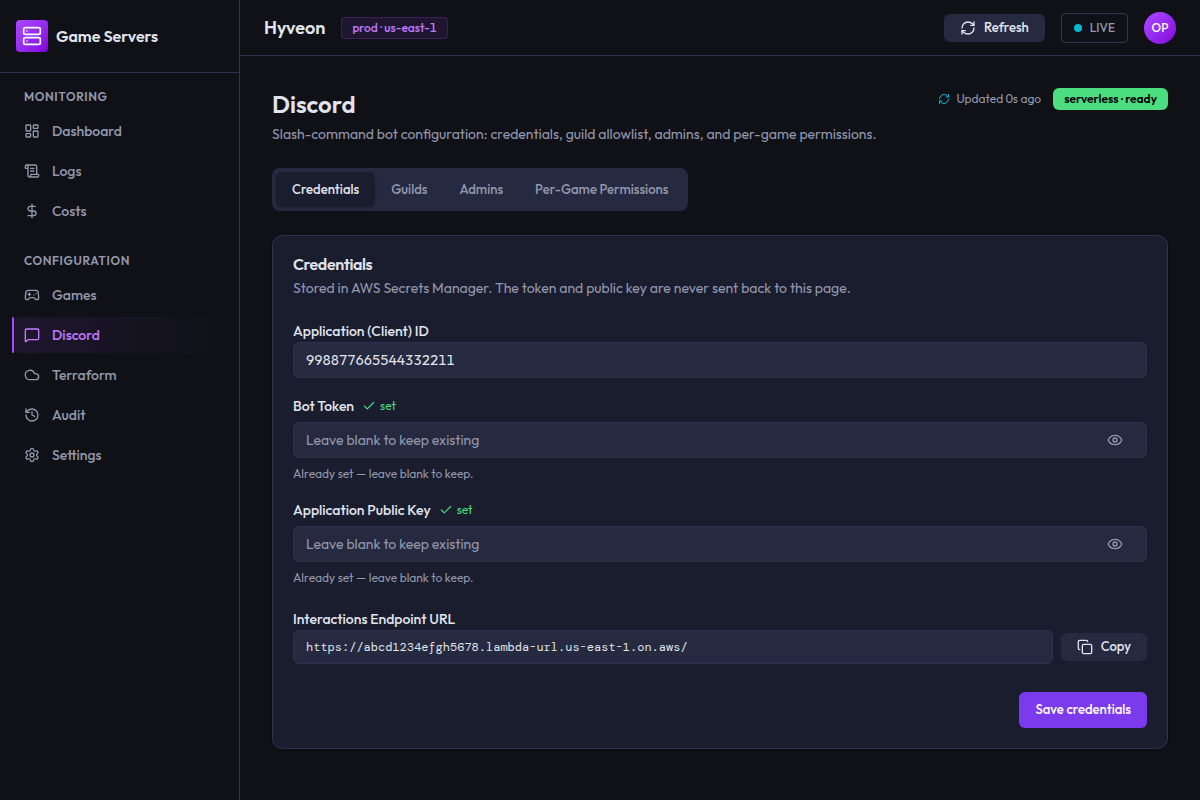
The Discord screen (route /discord) configures the slash-command bot: its
credentials, which Discord servers it will answer in, who counts as an admin,
and which players may start, stop or query which games.
Slash-command bot configuration: credentials, guild allowlist, admins, and per-game permissions.
The bot itself is fully serverless — there is no long-running bot process. Discord calls a Lambda over HTTPS; that Lambda verifies the request signature, checks the allowlist and permissions, and does the work. For the commands themselves, from a player's perspective, see the user guide.
The readiness badge
Top right of the page:
| Badge | Condition |
|---|---|
| serverless · ready (green) | The bot token and public key are both stored, and Terraform has published an interactions endpoint URL |
| terraform not applied (amber) | No interactions endpoint URL — the Lambda has not been deployed. Run a Terraform apply |
| awaiting credentials (amber) | The endpoint exists, but the bot token or public key (or both) has not been saved |
The badge checks three things only. It can read serverless · ready while your Application ID is blank, no guild is allowlisted, and no commands have ever been registered — none of which the badge inspects. Use the Get started checklist, not the badge, to judge whether the bot actually works.
The Get started card
Shown whenever no guilds have been added through the app. It is a four-step checklist; each step ticks green and strikes through as it is satisfied, and the whole card collapses once all four are done.
- Create an application at discord.com/developers/applications, add a Bot, and copy the Application ID, Bot Token, and Public Key.
- Paste those values into the Credentials tab and save. The tokens are stored in AWS Secrets Manager — they are never echoed back.
- Copy the Interactions Endpoint URL from the Credentials tab into the same Discord developer portal page.
- Add your server (guild) ID under Guilds, then click Register commands on that row.
The card links to the setup guide for the full walkthrough.
Tabs
Four tabs, in this order: Credentials, Guilds, Admins, Per-Game Permissions.
Credentials
Stored in AWS Secrets Manager. The token and public key are never sent back to this page.
| Field | Notes |
|---|---|
| Application (Client) ID | Not a secret — the stored value is shown. Must be a 17–20 digit Discord snowflake if provided |
| Bot Token | Masked, with an eye toggle to reveal what you typed |
| Application Public Key | Masked, with an eye toggle |
| Interactions Endpoint URL | Read-only, published by Terraform |
Both secret fields behave the same way. When a value is already stored, a green set marker appears next to the label, the placeholder reads Leave blank to keep existing, and the help text says Already set — leave blank to keep. The input always starts empty.
Secrets are never echoed back
This is enforced server-side, not just in the UI. The only shape the page ever receives collapses the secrets to booleans:
botTokenSet: Boolean(botToken),
publicKeySet: Boolean(publicKey),
The raw values are read from Secrets Manager, converted to true/false, and
discarded. Neither the config read nor the config write ever returns the
secret material. The one component that needs the real token is the command
registrar, which fetches it itself when it calls Discord.
The Interactions Endpoint URL
This is the HTTPS endpoint Discord will send every interaction to. It is created by Terraform, so before your first apply the field reads:
Run
terraform applyto provision the Lambda and surface this URL.
Once it exists it is shown in a code block with a Copy button (which flips to Copied for a second and a half).
What to do with it: paste it into your application's Interactions Endpoint URL field in the Discord developer portal. Discord immediately sends a signed PING to verify the endpoint, and the Lambda verifies that signature using your stored public key — so save the public key before you paste the URL into Discord, or the verification will fail.
Nothing in the app can tell whether you completed this step. Step 3 of the Get started checklist ticks green because the URL exists, not because Discord accepted it.
Saving
Save credentials sends the Application ID always, and each secret only if
you typed something into it. Blank secret fields leave the stored values
untouched. Both secret inputs are cleared after submitting. Success shows a
Credentials saved toast.
Note that the Application ID is always sent, so clearing that field and saving will clear the stored value.
Guilds
The interactions Lambda rejects commands from any server whose ID isn't in this allowlist. Enable Discord Developer Mode (Settings → Advanced) to copy server IDs.
Adding a guild
Type or paste a guild (server) ID into the Add a guild field — placeholder
Guild (server) ID — 17–20 digits — and press Enter or click Add.
| Error | Meaning |
|---|---|
Guild IDs are 17–20 digit Discord snowflakes. | Not a valid snowflake |
That guild is already allowlisted. | Already present, in either the app's list or Terraform's |
Adding takes effect on the next interaction — the Lambda re-reads its config on every invocation, so there is nothing to restart.
The table
| Column | Contents |
|---|---|
| Guild ID | The snowflake |
| Status | registered or not registered, plus a terraform badge on Terraform-managed rows |
| Actions | Register and Remove |
When the list is empty: No guilds allowlisted yet.
Registering commands
Slash commands are registered per guild, never globally — a global registration would leak the commands into every server the bot has ever been invited to.
The row button is labelled Register. It bulk-overwrites that guild's
command list with Hyveon's four commands (/server-start, /server-stop,
/server-status, /server-list).
Above the table, Register commands in all guilds does the same thing for every row in turn, sequentially, so a partial failure is visible. Each guild produces its own toast.
You need to re-register whenever you add a new guild, and whenever a Hyveon upgrade changes the command definitions.
registered badge is optimisticTwo things to be aware of. First, the badge is session-local: it is never read back from Discord or from the server, so it resets whenever you reload the app, even for guilds that really are registered.
Second, a registration that Discord rejects leaves the badge at
not registered and raises an error toast titled
Registration failed for guild <id>, with Discord's own message as the
description. Causes include a missing or malformed Application ID, a missing
bot token, or the bot not actually being in that guild. Because the failure is
reported per guild, a bulk registration that fails partway still tells you
exactly which guild it stopped on — and it carries on through the rest of the
allowlist rather than aborting.
Terraform-managed guilds
Guilds set through the base_allowed_guilds Terraform variable appear with a
terraform badge, and their Remove button is disabled with the tooltip:
Managed by Terraform — remove via terraform.tfvars
They live in a Terraform-owned record that the app only ever reads. Even if the request were forced through, the server refuses it:
Guild
…is in the Terraform base config and cannot be removed via the UI. Edit base_allowed_guilds in tfvars and re-apply Terraform.
Terraform-managed guilds can still be registered — the restriction is on removal only.
Removing a guild
Remove opens a dialog:
Remove guild?
The bot will no longer respond to commands from this guild.
You must type the full guild ID — it is the input's placeholder — before the Remove guild button unlocks. The match is exact.
Removing revokes the allowlist entry. Slash commands already registered in that guild remain visible in Discord until you remove them manually; they will simply be rejected.
Admins
Admins can run every command on every game. Right-click a user or role with Discord Developer Mode enabled to copy their ID.
Two chip inputs: Admin User IDs and Admin Role IDs. Placeholder for
each: Paste or type a user ID, then press Enter.
Chip input behaviour
Both fields work identically:
| Action | Result |
|---|---|
Enter or , | Commits what you have typed as a chip |
| Clicking away | Commits too |
| Pasting several IDs separated by spaces, commas or newlines | Splits them and commits each one |
| Clicking a chip's × | Removes it |
| Backspace in an empty input | Removes the last chip |
Each token is validated as a 17–20 digit snowflake. Anything that fails is
put back into the input rather than silently dropped, with the error
Not a snowflake: 123, abc shown below — so you can fix a typo without
retyping the whole paste.
Removing an admin chip asks first:
Remove admin?
This ID will no longer have admin-level access.
with a Don't ask again for this session checkbox. Ticking it suppresses the dialog until you restart the app.
Saving
Save admins is disabled until you have changed something. It replaces
both lists atomically — whatever is on screen becomes the new admin set.
Success shows Admins saved.
Nothing is persisted until you press Save; adding and removing chips only changes what you see.
Terraform-managed admins
If admins were set through the base_admin_user_ids / base_admin_role_ids
Terraform variables, a read-only section appears below the Save button headed:
Terraform-managed (read-only)
Those chips have no remove button at all. Change them by editing
terraform.tfvars and re-applying. They are unioned with the app-managed list
at runtime, so both sets of admins are effective.
Per-Game Permissions
One row per game. Edit the chips and action checkboxes inline, then Save the row. Clear drops the entry entirely.
One row per game, listing every game the app knows about — not just the ones that already have a permission entry. Games with no entry start blank.
| Column | Contents |
|---|---|
| Game | The game name |
| User IDs | Chip input for individual Discord users |
| Role IDs | Chip input for Discord roles |
| Allowed actions | Three checkboxes: Start, Stop, Status |
| Save | Save and Clear buttons |
Chip inputs behave exactly as described under Admins, except that removing a chip here happens immediately with no confirmation.
How the gates combine
A non-admin needs both halves: their user ID (or one of their role IDs) must appear in the row, and the checkbox for the action they are attempting must be ticked.
So a row with a role ID and only Status ticked lets that role run
/server-status for the game but not start or stop it. Autocomplete respects
the same rules, so a user who cannot act on a game will not see it offered in
the command's game picker.
The full evaluation order, applied on every interaction, is: guild allowlist → admin user → admin role → this per-game entry → deny.
Saving and clearing
Save is disabled until the row is dirty. It replaces the whole entry
for that game — users, roles and actions together. Success shows Permissions saved.
Clear deletes the entry outright, after a confirmation:
Clear permissions for minecraft?
Per-game permissions will be reset. This is recoverable from infrastructure-as-code.
This dialog also offers Don't ask again for this session.
Clearing a game's entry does not lock anyone out who is an admin — admins bypass per-game permissions entirely.
Empty state
If no games are known:
No games configured yet — run
terraform applyfirst.
Note that this same message appears if the games list simply failed to load, so if you know you have games declared, check the Games page.
Loading and error states
Before the configuration loads, the page shows only its heading and
Loading…. If the configuration cannot be read at all:
Discord config unavailable — infrastructure not deployed yet. Run `terraform apply` first.
The tabs, the readiness badge and the Get started card are all absent in that state. It means Terraform has not published the DynamoDB table and Secrets Manager ARNs the app needs.
Any failed change produces a toast titled Action failed with the reason as its description.
What a working bot actually requires
The badge covers three of these. The rest are on you.
terraform applyhas run, publishing the interactions endpoint, the config table and the two secrets.- A Discord application with a Bot exists.
- The Application (Client) ID is saved — required for command registration, and not checked by the badge.
- The Bot Token is saved.
- The Public Key is saved.
- The Interactions Endpoint URL has been pasted into the Discord developer portal and accepted.
- The bot has been invited to the guild with the
applications.commandsscope. Nothing in this UI reflects this. - The guild is allowlisted, here or via Terraform.
- Commands have been registered in that guild.
- The invoking user is an admin, or has a matching per-game entry with the right action ticked.
- The game itself is declared in
terraform.tfvarsand deployed.